Microsoft Word for the web has gained a new feature. The online version of the word processor now supports link previews in documents.
Users who are familiar with Word Online and the offline version of Word will know that the program can be used to create hyperlinks. These appear as normal links in the document, and you can click on them to open the URL in your web browser, or to open other Office files that they have been linked to.
Link preview in Word Online
Microsoft is changing this experience in order to allow users to get a sneak peek of a link's content without leaving the document. The link preview in Word works a little differently compared to how it works in other apps. Let's say you shared a link in a chat message, the messaging service would pull up some information and display a preview of the page. Some services process this differently, when you mouse over a link, you would see the preview of the linked page.
However, Word Online requires you to interact with the link, i.e. you will need to click on the link text to make the preview appear directly inside the document. The web preview displays the following content in a pop-up panel: the link title, the website's logo, the URL, an image (on the linked page) and a description of the page's contents.
The feature also works with bookmarks in documents. That's not all, Microsoft has added some useful buttons that appear in the preview window. The options can be used for quick actions such as copy, edit or remove link from the document. You can use the information displayed in the preview window to review the data and decide whether to click on the link and leave the current document, or ignore it and continue working on the document.
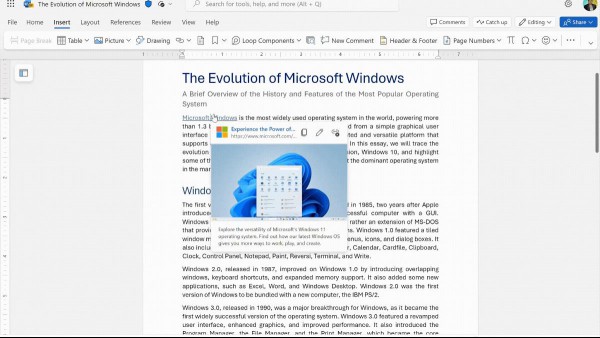
Image Courtesy: Microsoft.
Interested in trying the feature? Well, it is not enabled by default. That's because pulling content from web pages in documents could violate a user's privacy. You will need to change a setting to make it work, and here's how to do it.
How to enable link previews in Word for the web
1. Open Microsoft Word Online in your browser.
2. Click on File > About > Privacy Settings.
4. Toggle the checkbox next to the option that says "Enable optional connected experiences".
5. Open a document that contains a link to a web page and click on the link text. Or, insert a link in a document, and click on it, you should see the preview of the content.
You can follow the above tutorial to disable link previews in case you dislike the feature.
The web preview feature is a nice quality of life improvement, as it can help save some time which would otherwise be wasted by opening the link and break your workflow. Microsoft says that it is rolling out support for link preview in Word for the web for all users. So it may take a few days for the feature to be available for everyone.
Do you like the new feature?